Ford Processes
Triage
Process
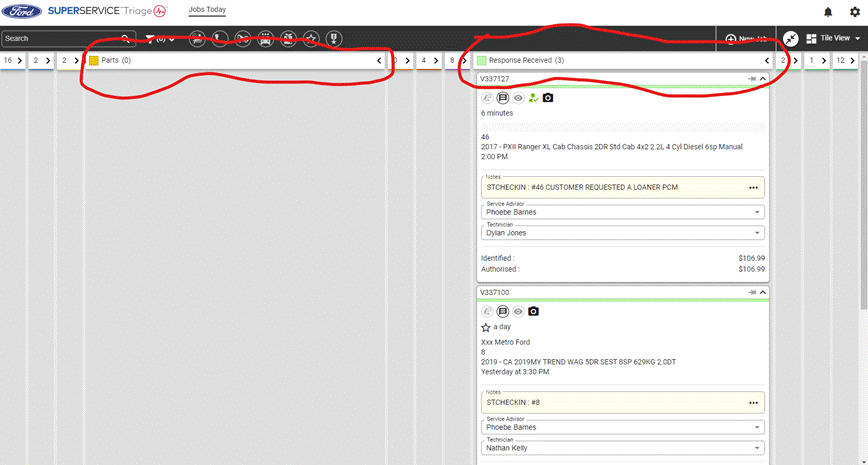
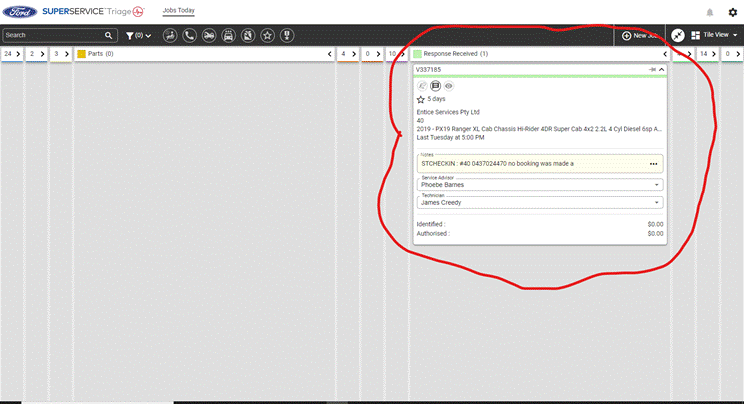
when opening triage, the first screen will have 2 main categories that applies to parts, and they are Parts and Response Received.
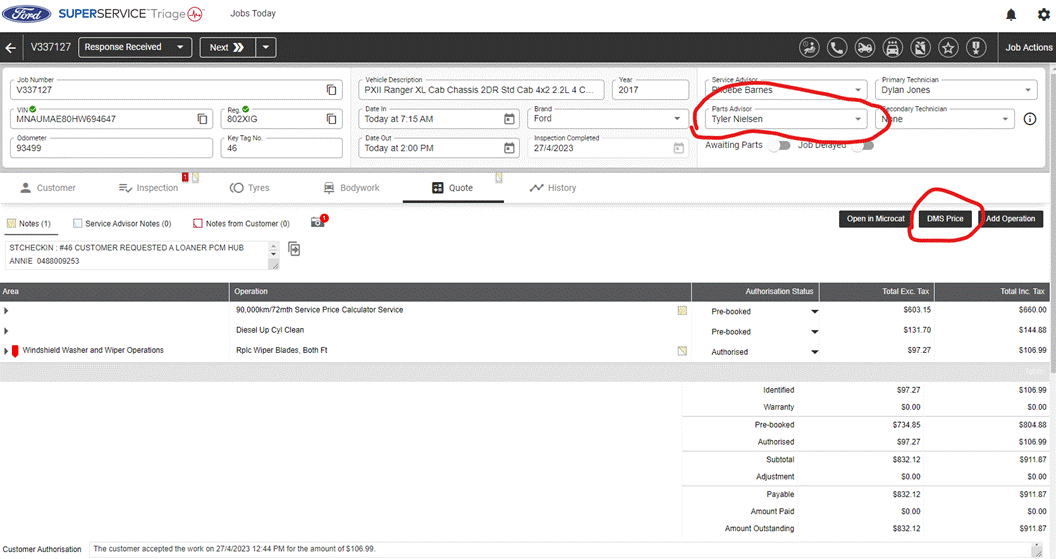
First you will have a RO in parts to quote, click on this. Once you are on the next screen select DMS pricing in the top left corner and then attach your name to the RO.
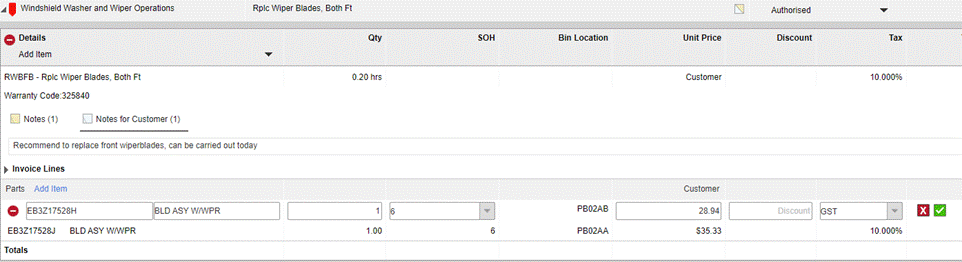
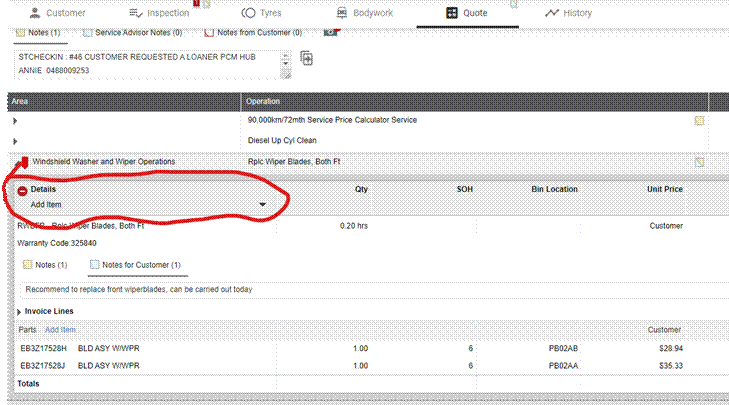
From here most parts should have auto allocated to the right operation but double check. If they have not, then you will need to add them manually. Click on the desired task and click add item, a drop down will appear and select parts. From there add in the part number and it will auto fill in the rest. If we have none in stock, you will have to check stock in era and panda. Clicking on the stock that we have on hand will create another drop down with options of eagle farm and Melbourne, ETC, click the green tick at the right side of the page once complete to save.
Once a response is received the job will show up in response received
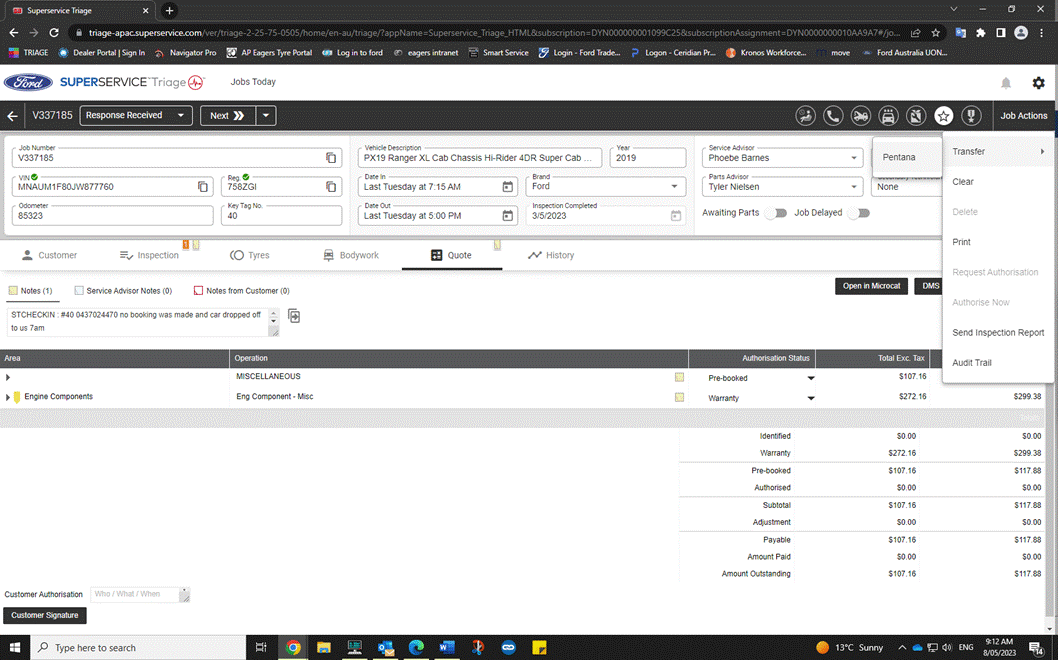
From here click to open the job and go to job actions in the top right-hand corner then transfer, then Pentana.

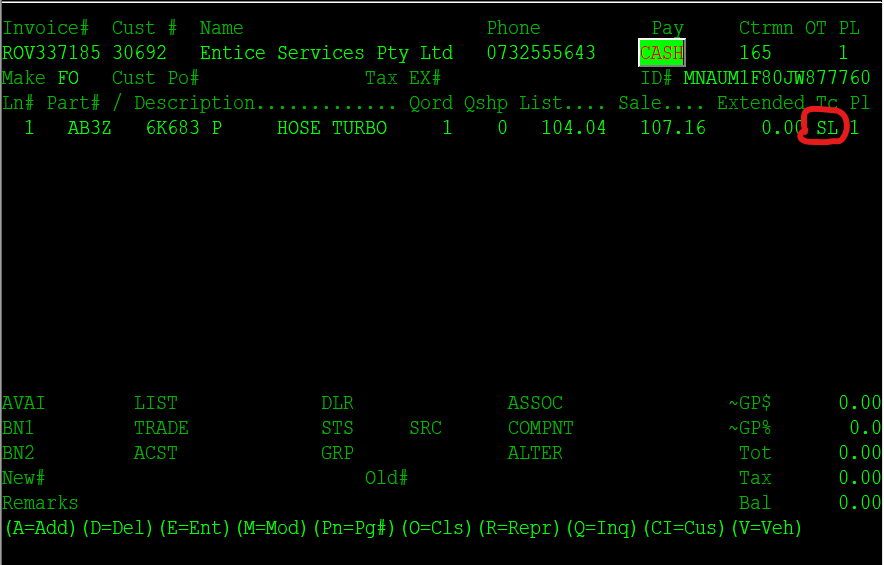
Once this is complete all authorised parts will have been allocated to the RO. If the parts must be ordered, they will be on the RO, but you will need to go into it in 2525 to change the transaction code from SL to the correct code from where it is being ordered.
Once this is completed go back to triage and mark either the parts here box or the parts checked box to let the advisor and mechanics know that this has been completed
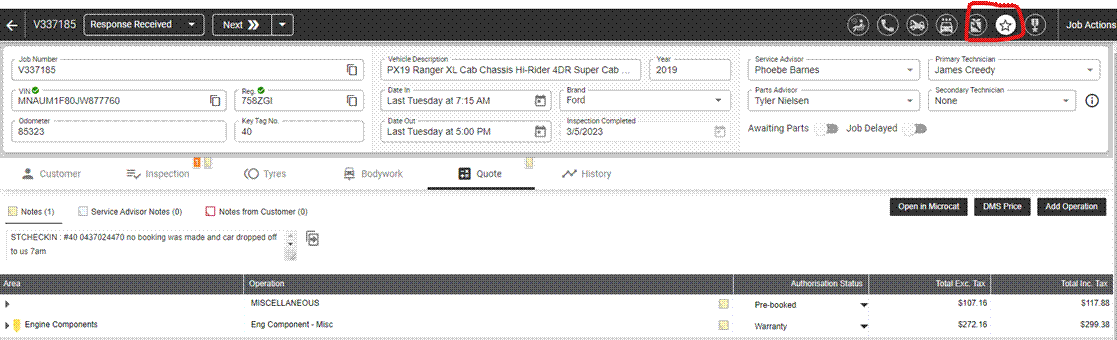
From here the workshop foreman will move the RO to either in progress or completed
ROBO
Ordering
when ordering ROBO parts you must order them to the RO at a 0 Qshp quantity so that it will go to our ROBO system.

Adding
to RO
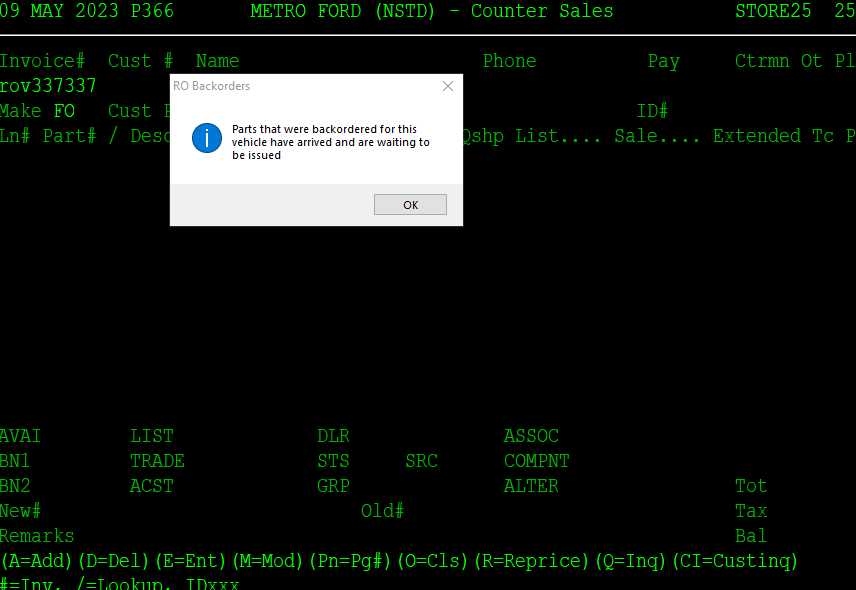
When parts for ROBO are here the RO that you open will have a pop up said that the back ordered parts are in
From here type in ROBO into the RO as a part number press enter. This will take you to a screen to tag the parts you want to ad to the RO.
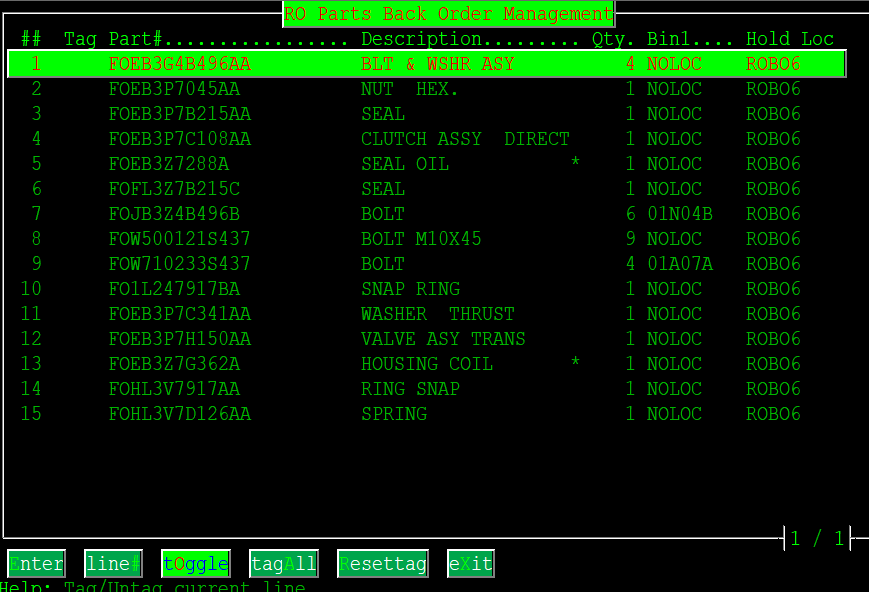
Most ROBO parts will be on the designated shelf once on the RO hand them over to the Tech.
Checking
Status
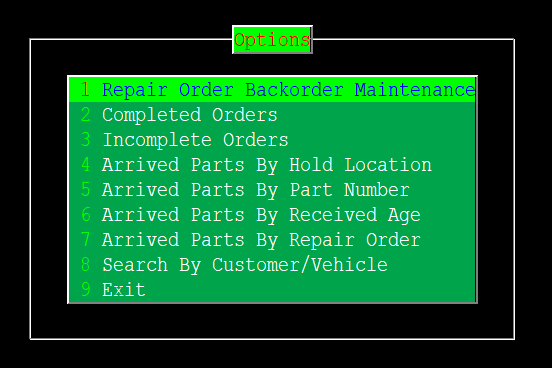
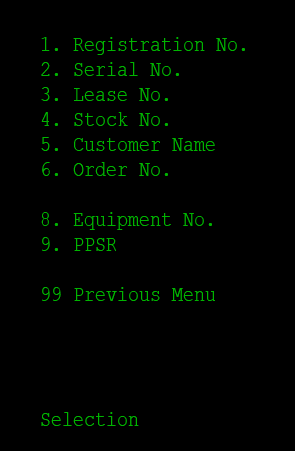
Use screen 2124 to check on ROBO parts that are here/waiting on. Press 8 to search by customer details. From here you can choose to use rego or multiple other options to get the correct customer.
Ordering
Non-Warranty
parts
When ordering non warranty parts first check that parts have been authorised on Triage, then open 2525 and enter through to customer number.
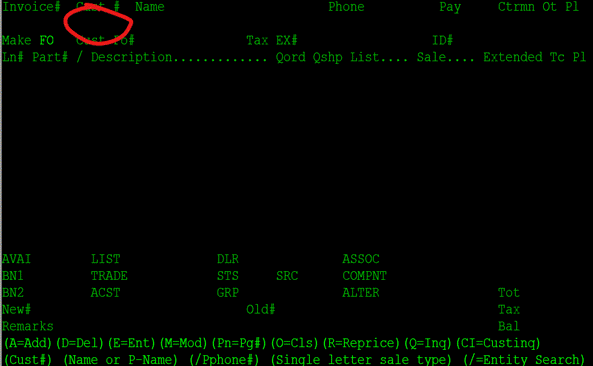
Enter customer number from
triage or RO. Then enter counterman number and proceed to entering part
numbers. Once finished type E then hit enter to go to the next screen.
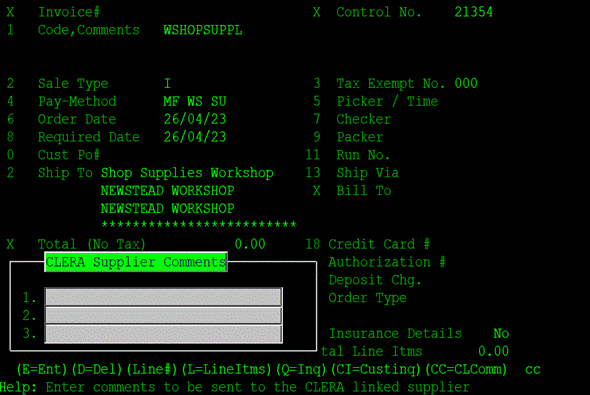
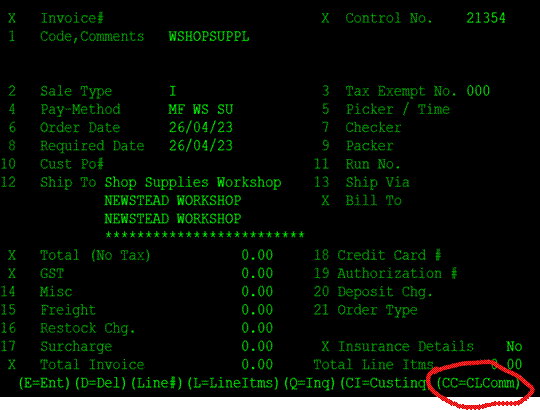
Once in the next screen type
CC then enter. Type the previous RO in line 1 and customer name into line 2.
Enter through twice, type S then enter to save. The order will then be sent
though to Eagle farm or the manufacture.
Warranty
parts
When ordering warranty parts open 2525 and type in the RO
and add it too there directly then continue the same steps in screen 2
Enter customer number from
triage or RO. Then enter counterman number and proceed to entering part
numbers. Once finished type E then hit enter to go to the next screen.
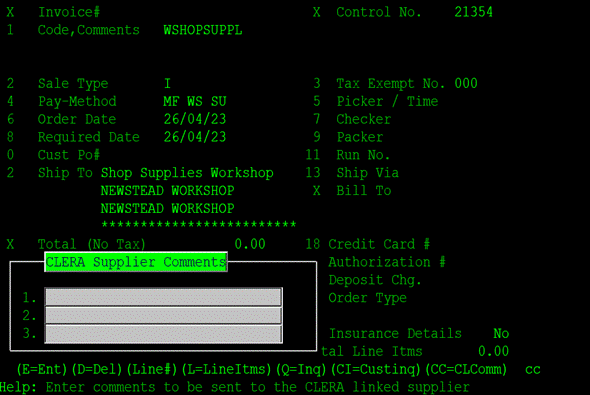
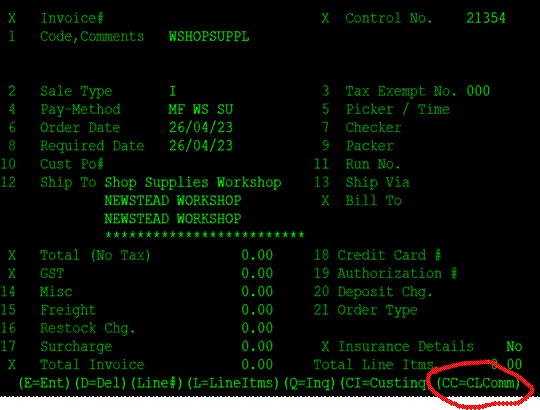
Once in the next screen type
CC then enter. Type the previous RO in line 1 and customer name into line 2.
Enter through twice, type S then enter to save. The order will then be sent
though to Eagle farm or the manufacture.
Receipting
Genuine
parts
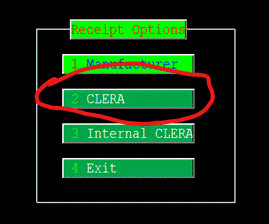
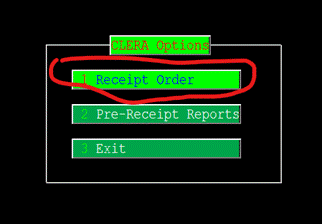 When
receipting in genuine parts into store go to 2181 and select option 2 in
receipt options, then option 1 for receipting orders in Clera options
When
receipting in genuine parts into store go to 2181 and select option 2 in
receipt options, then option 1 for receipting orders in Clera options
From there look at your invoice number in the top left-hand corner of your invoice and match it to one of the invoice numbers in 2181 then hit enter to tag it. Continue this with all invoices that you have.
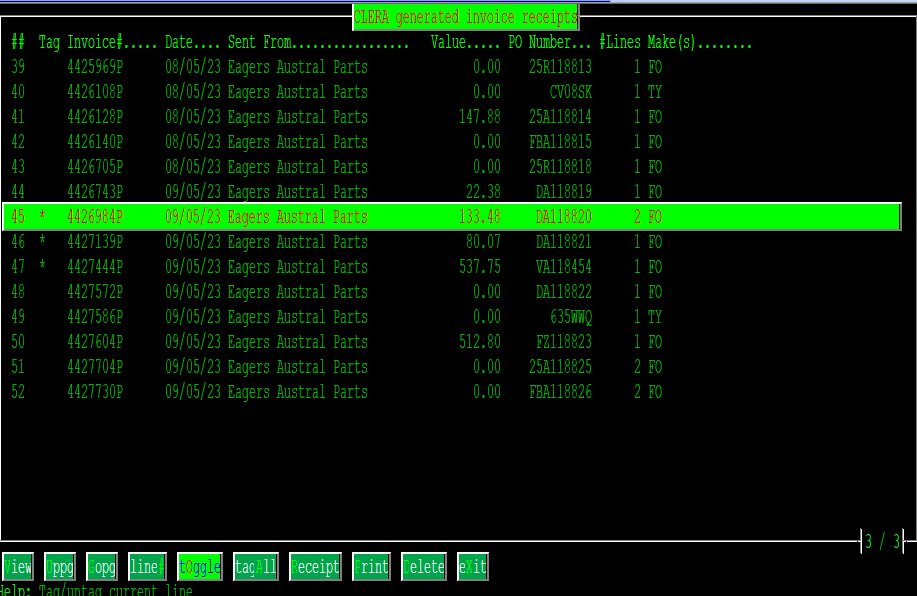
Once all invoices have been tagged press R for receipt and follow to the next screen. The screen includes all receipt numbers, but it is not relevant to you, enter through to the screen for adjusting the GST and continue entering through until you have a blank screen.
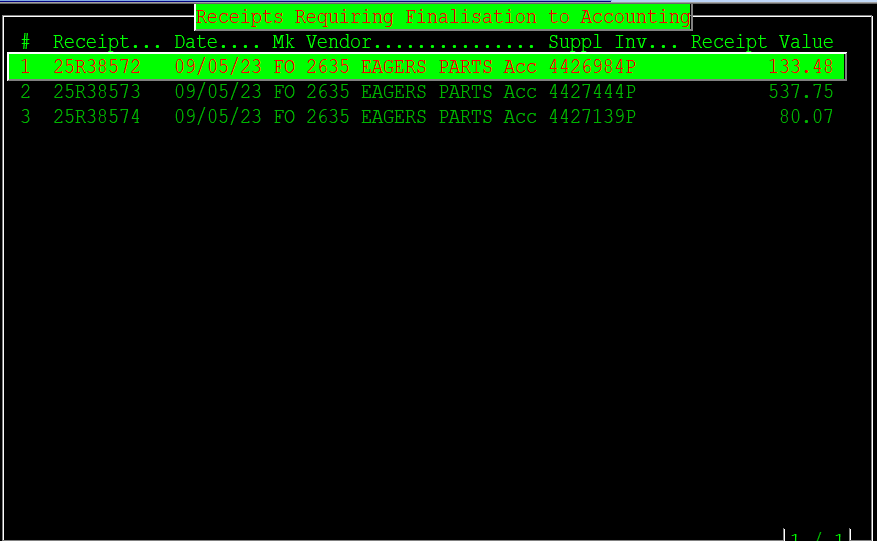
From here press X to exit. This will take you to the allocation screen. If you wish to print continue press enter. If you do not then press N for no, write printer name Lsystem. Press enter and it will not print.
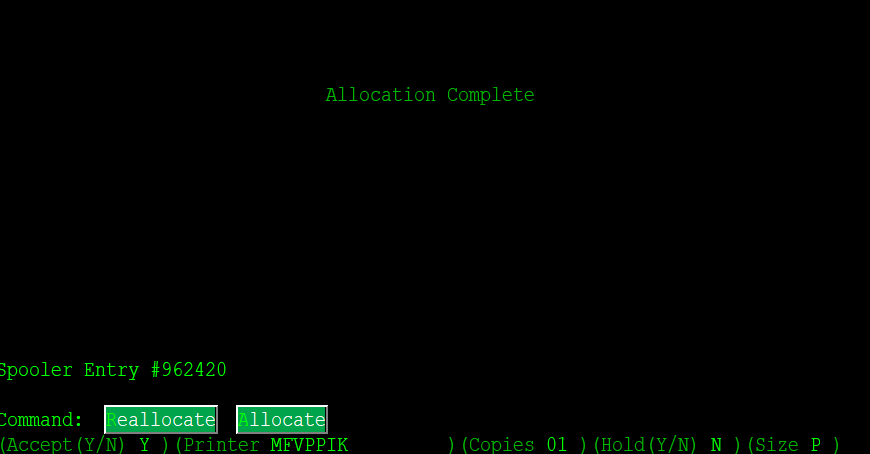
Once this is all complete it will put you at Clera options again, then F1 out to the main screen
Non-genuine
parts
Cancelling Orders
Process
When cancelling an order contact orderchange@apeagersparts.com.au and CC in inventory@eagers.com.au. State the Part number and order number for the order. Note that not all orders can be cancelled and if its to late you will either put it into stock or on to the workshop account depending on who is to blame.
Crediting
Process
When you have a part return make sure to fill out these 2 forms and attach them to the parts before sending back. Each of them are simple to fill out. All information needed can be found on screen 2022.
ETA’s
Process
When asked for an ETA first check the invoice or RO that the part was ordered on to check the transaction code as they will let you know if its just eagle farm or something further away. A full list of the transaction codes and their meanings are listed in the info and passwords section.

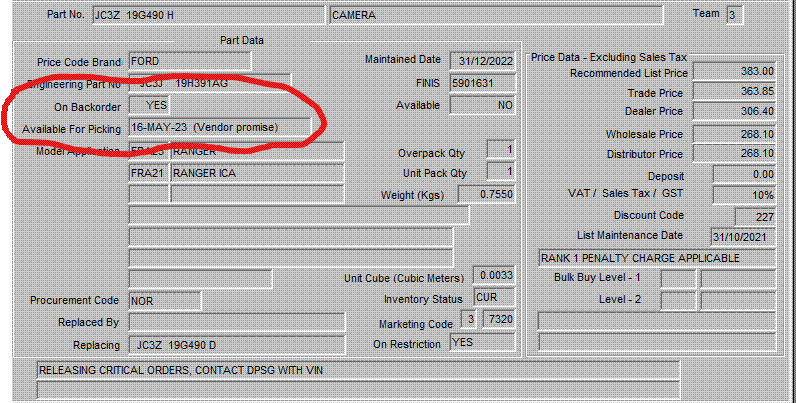
If the part is listed as on back order put the part number into panda and see if the vender has a promised date
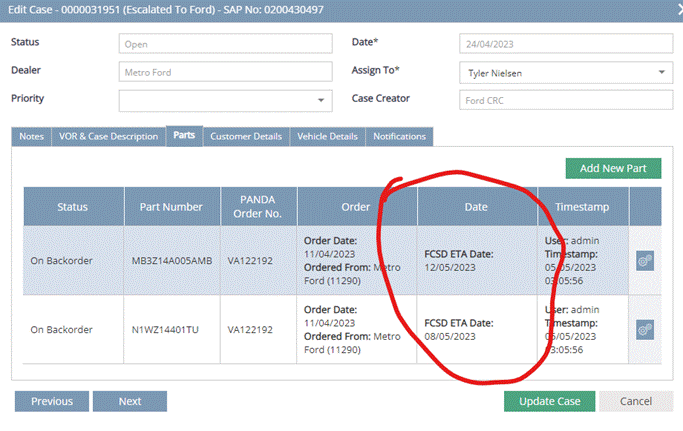
If the part is a VOR part, then look in the dealer view UON portal is where you would find the ETA’s. once on the website got to open cases and scroll down to find open cases. From here you can search case numbers, vin, and customer name. once in a customer account go to parts and you will see the ETA date.
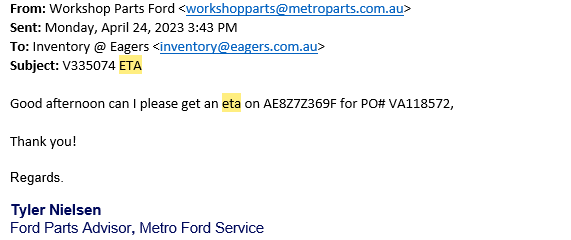
If all else failed email inventory@eagers.com.au with the part number and order number and ask for an ETA
Tyres
Process
Email either Steve chapman or Maddy Blair
Types
BFG 265/70R16 *BF350721** Take offs: Bridgestone 25 *BS11000282**
Bridgestone 25 *BS11000908** Take offs: Bridgestone 255/70R *BS11000282**
Info & Passwords
Codes
Transaction Codes.
27: Ford Eagle Farm
FR: Ford Road Freight
FA: Ford Air Freight
VA: Overnight Melbourne (Email Peter Scuffield with part number, vin, and RO)
BA: Back-order airfreight
Price codes
- 1 - Retail
- 2 – Trade
- 3 - Dealer
- 4 – Wholesale
- 5 – Warranty
- 6 – List
- 7 - Metro Trade
- 8 - Metro Dealer (Internal) and Used Cars
- 44 – Average Cost
- 31 - Staff
Era
Screens
2022 – part number enquiry
2525 – RO invoicing
2023 – Customer previous sales
2102 – Part number editing
2041 – Part Editing
2124 – Checking Back orders
2181 – Receipting genuine parts
2063 – Receipting non genuine parts
6973 – Creating purchase orders #
6945 – Texting customer
2532 – Cash acknowledgement
2551 – Activity Analysis
Passwords
Computer Passwords.
Login: Eagers04@
Ford Dealer View: Eagers04@
Microcat & Triage: Parts123
Panda: Login: P1129PAS/Password: FORD54/Dealer Code:11290
PS17: Negative allowance password (Ford, Force on RO)
PG: Negative Qord Password/Credit Password (Ford)
S25: Force on Robo (Ford)
gaz: Frozen Part password (Ford)
PETER: Delete/Void Invoices (Ford)
7410: Delete Line Password
Info
Printer: MFVPPIK
Do not print: Lsystem.